In this article
Offering a dark version of your website is gradually becoming a standard that sites must adopt for the benefit of their users. Let's see in this article how to create a dark theme and how to detect your visitor's preferences.
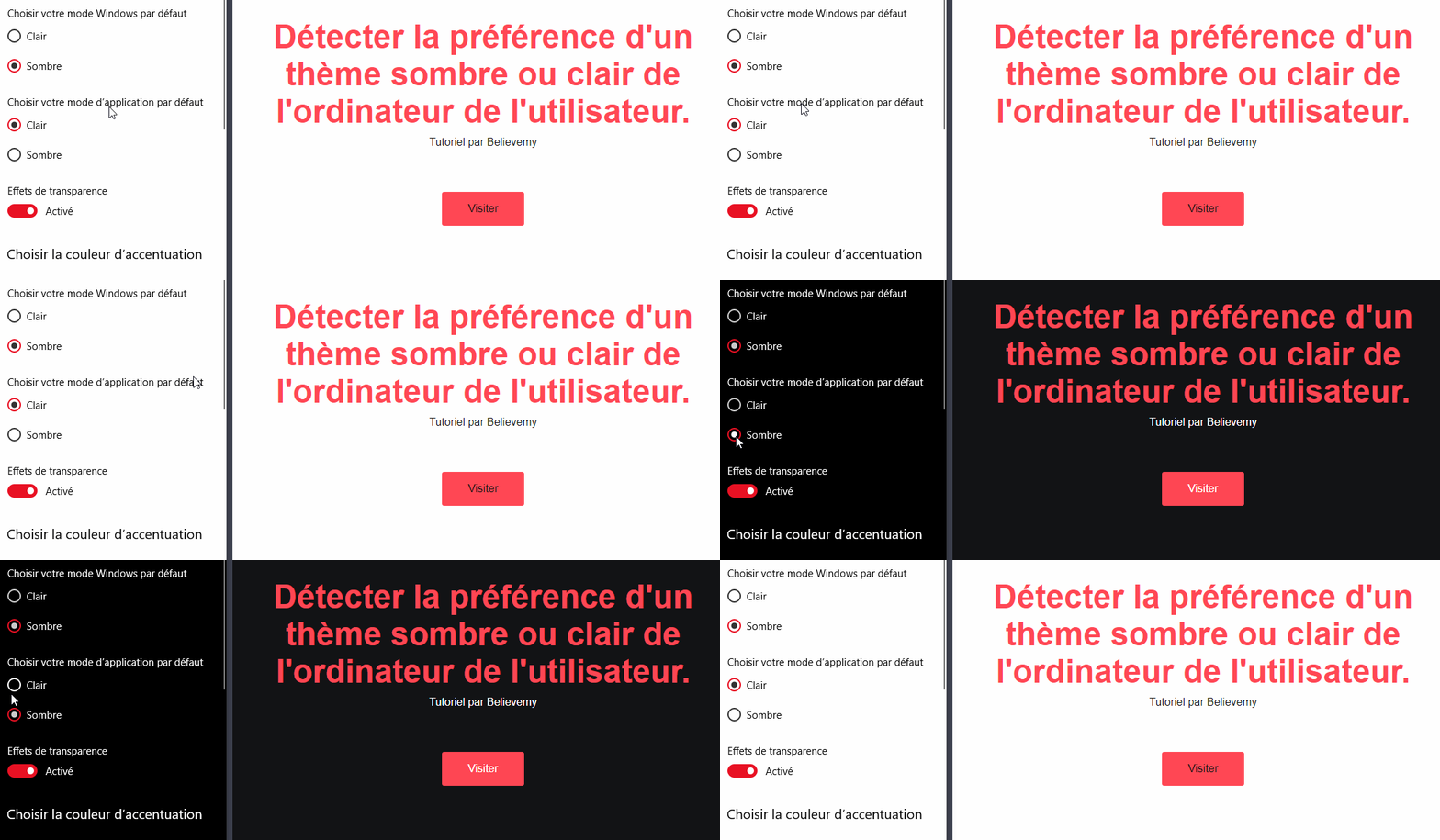
Step 1
Let's start with the HTML code!
HTML
<section>
  <h1>Detecting a user's preference for a dark or light theme on their computer.</h1>
  <p>
    Tutorial by Believemy
  </p>
  <a href="https://believemy.com">Visit</a>
</section>
Everything will be handled in the CSS.
In the previous step, we are just having fun creating a small demonstration site.
Step 2
Let's style the page with body.
CSS
body {
  display: flex;
  align-items: center;
  justify-content: center;
  height: 100vh;
  font-family: arial, sans-serif;
  background: var(--background);
  color: var(--foreground);
  text-align: center;
}
The secret lies in using variables (--background and --foreground here).
Step 3
Proceeding to the title.
CSS
h1 {
  color: var(--color);
  margin-bottom: 0.6rem;
  font-size: 3rem;
}
Step 4
Let's take care of the link.
CSS
a {
  display: inline-block;
  text-decoration: none;
  color: var(--foreground);
  margin-top: 4rem;
  padding: 1rem 2.4rem;
  border-radius: 0.2rem;
  background: var(--color);
}
We continue just by playing with the variables for colors.
Step 5
Let's create the variables.
CSS
:root {
  --background: #131416;
  --foreground: #fff;
  --color: #ff4754;
}
Step 6
CSS
@media (prefers-color-scheme: light) {
  :root {
    --background: #fff;
    --foreground: #131416;
    --color: #ff4754;
  }
}
You were expecting something complicated? :-)
We simply invert just the values of background and foreground.
Category: Developers