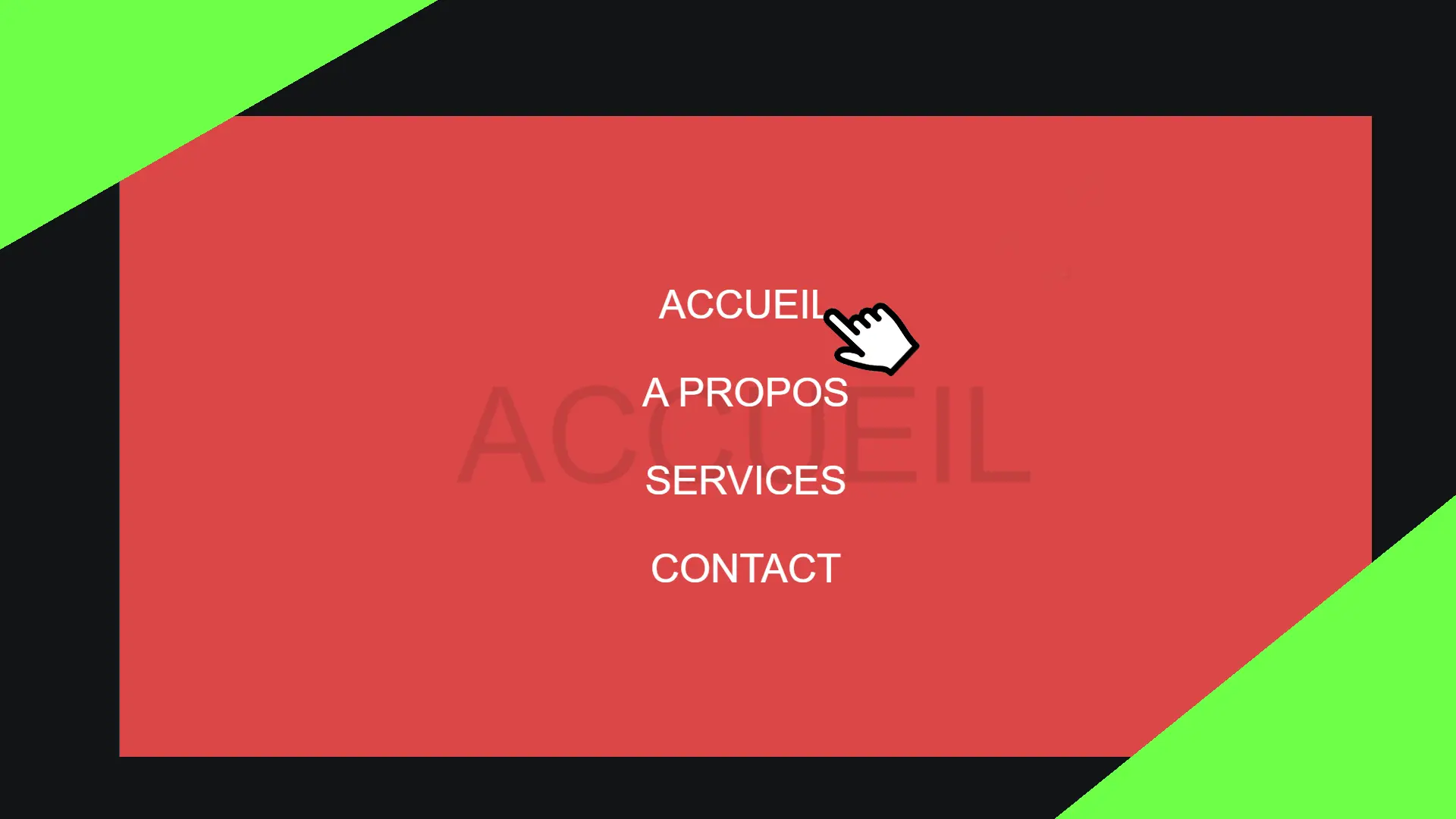
Having a menu has become an essential classic. But having a full-screen menu is ideal when you want your site to be fully responsive (and therefore adapted to mobile devices, for example). This article will help you set up a full-screen menu that triggers on click!
You can find the entire tutorial on our Instagram account
Step 1
To start, we need to create the structure of our site: so let's move on to HTML.
<nav>
      <div class="backdrop"></div>
      <ul>
        <li><a href="#">Home</a></li>
        <li><a href="#">Blog</a></li>
        <li><a href="#">Projects</a></li>
        <li><a href="#">Contact</a></li>
      </ul>
    </nav>

    <button>
      Menu
    </button>
There’s nothing very complicated here. Note especially that we are using a backdrop class which will allow us to create a shadow that will trigger and cover the entire page when the button is clicked.
Step 2
Now let's style our button, giving it a modern look:
button {
      background: #ff9234;
      color: white;
      border: 0;
      padding: .5em 1em;
      font-size: 1.5em;
      border-radius: 1em;
      outline: 0;
      cursor: pointer;
      transition: all .1s;
    }
    button:hover {
      background: #35d0ba;
    }
Step 3
Now let's move on to styling the menu once it's deployed:
nav {
      position: absolute;
      top: 0; left: 0; right: 0; bottom: 0;
      display: none;
    }

    ul {
      list-style: none; padding: 0; z-index: 2;
    }

    ul li {
      text-align: center;
      animation: .3s print;
    }

    li a {
      text-decoration: none; font-size: 3em;
      text-transform: uppercase;
      font-weight: bold; font-family: arial;
      color: white;
    }

    ul li a:hover { color: #ff9234; }

    .open {
      display: flex;
      justify-content: center;
      align-items: center;
    }
A bit longer, but still simple. We will create an animation later, which is why we are calling an animation in the li tag named print.
You can also note that there is an open class that serves no purpose at the moment. This class will be added using JavaScript to open our menu. We are also using flexbox to horizontally and vertically center all the menu links.
Step 4
Now let's move on to our backdrop class and thus to our shadow! Here, nothing very new—we will position the class as absolute and set "top", "left", "right", and "bottom" to 0 to make it cover the entire page. We will also use an animation to make the shadow appear, which we will call fade.
.backdrop {
      position: absolute;
      top: 0; left: 0; right: 0; bottom: 0;
      background: rgba(0, 0, 0, .9);
      cursor: pointer;
      animation: fade .1s;
    }
Step 5
Our design is now complete; we just need to create the animations to display our beautiful menu with a final class.
@keyframes print {
      from {
        margin-top: -50px; opacity: 0;
      }
      to {
        margin-top: 0; opacity: 1;
      }
    }

    @keyframes fade {
      from {
        opacity: 0;
      }
      to {
        opacity: 1;
      }
    }
Step 6
Now all that's left is to make everything work using JavaScript.
const button = document.querySelector('button');
    const nav = document.querySelector('nav');
    const backdrop = document.querySelector('.backdrop');

    button.addEventListener('click', () => {
      nav.classList.add('open');
    });

    backdrop.addEventListener('click', () => {
      nav.classList.remove('open');
    });
When the "Menu" button is clicked, we add the open class to our navigation bar, which will make it appear.
If the user clicks on the shadow (backdrop), we remove the open class and hide the navigation bar.