Detecting the shift key on a form with JavaScript

Whether it's for your registration or login forms, or even on your password change pages, warning your users when they use the shift key on their keyboard will considerably improve their experience on your site. In this article, we'll show you how to do this very easily!
•
Updated on August 14, 2026
•
2 min read
Believemy logo
In this article

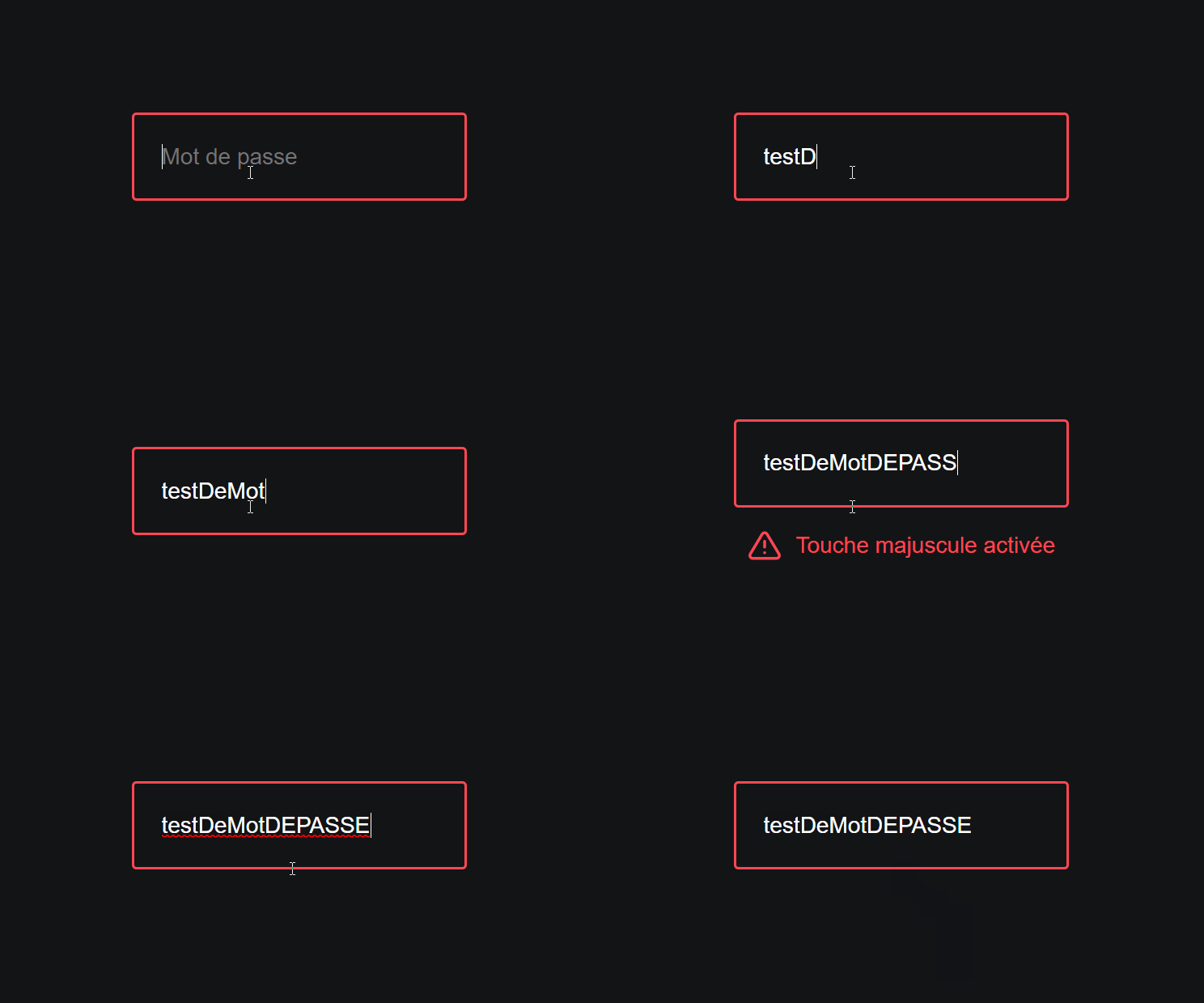
Whether for your registration or login forms, or even on your password change pages, informing your user when they use the Caps Lock key on their keyboard will considerably enhance their experience on your site. Let's discover in this article how to achieve this very easily!
Image


Step 1

The HTML code.

HTML
<a href="#">
  Messages
  <span>3</span>
</a>

We simply add a link to our page. The span tag will be our notification bubble.

To easily use an icon, we utilize feather icons.

What we do is very simple: we use an original attribute: data-feather which contains the value of the icon we want to add to our message.

Then we execute the JavaScript code with the replace() function so that it detects the class and replaces it with an SVG icon.


Step 2

Let's style the link and its hover effect.

CSS
a {
  position: relative;
  color: white;
  border: 2px solid #FF4754;
  text-decoration: none;
  padding: 1rem 2rem;
  border-radius: 4px;
  transition: all 0.2s;
}

a:hover {
  background-color: #FF4754;
}

In the previous step, we use Flexbox (display: flex) to center the content text in our notification bubble both horizontally and vertically.

We give it a 4px border of the page's background color to give the impression that the notification is not directly attached to the border of our button.


Step 3

Now, let's style the notification bubble.

CSS
#message {
  color: #FF4754;
  display: none; /* we will change this with JavaScript */
  align-items: center;
  justify-content: center;
  margin-top: 15px;
}

#message svg {
  margin-right: 10px;
}

In the previous step, we select our message ID.

Then, we add the keyup event which detects whenever a key on the keyboard is pressed.

Thanks to getModifierState, we will check if the Caps Lock key has been activated using CapsLock.

If so, we display our message by changing the display value to flex, otherwise, we hide our message by ensuring the display value is set to none.
Category: Developers

Share this article

Want to help us? Share this article on your networks or even better: on your site, in an article or in your newsletter.

Believemy logo
Comments (0)

You need to be logged in to comment on this article: log in or sign up.

Read next

Show / Hide on a password field

The login form is the most common form found on websites. Creating a login form that gives users the choice of displaying or hiding their password is therefore an element that will considerably improve the lives of your users. Let's find out how in this article!

December 9, 2024

Animating a checkbox with CSS

Animating the checkboxes in your forms can greatly improve the experience your users have and will undeniably increase their desire to fill them in. A form that's more fun to fill in is a form that your users will fill in more often. In this article, we'll look at how to animate a checkbox using CSS!

December 9, 2024

Detecting the "swap" to close a menu with CSS

Think about your users when they visit your website on their mobile devices: allowing them to close your menu using the "swap" will make their experience on your site much easier, so you'll have a better user experience, which increases your chances of building loyalty. Let's find out how in this article!

December 9, 2024

The out-of-range selector (for styling when a value is not correct)

Have you always wanted to dynamically check the values entered by your users in a form field without using JavaScript? Here's how to change the style of a field when a number entered by the user is invalid!

December 9, 2024

Creating a form with dynamic labels

The more modern a form, the more engaging it is. In this article, we'll look at how to create a form with dynamic labels that will increase the engagement of your forms and make your users want to fill them in.

December 9, 2024

Create a character counter in an input with JavaScript

Whether it's for choosing a nickname or for any other important data, you may need to limit the number of characters your users can enter in a form field. In this article, we'll look at how to do this simply and effectively.

December 9, 2024

Make an animated notification message with JavaScript

Whether it's to quickly warn your users that a feature of your site is not yet available or to let them know that an action has been successfully completed, notifications are the simplest and most modern way to set up. Find out how in this article!

December 9, 2024

How do you manage forms in React?

Forms are essential elements of interactive web applications. Learn how to master controlled and uncontrolled inputs to deliver a seamless user experience. Discover best practices for simplified management.

December 11, 2024

Become the solopreneur you dream of being.

First project, career change, business launch: access our courses, practice on real-world cases, and move forward with clear guidance.