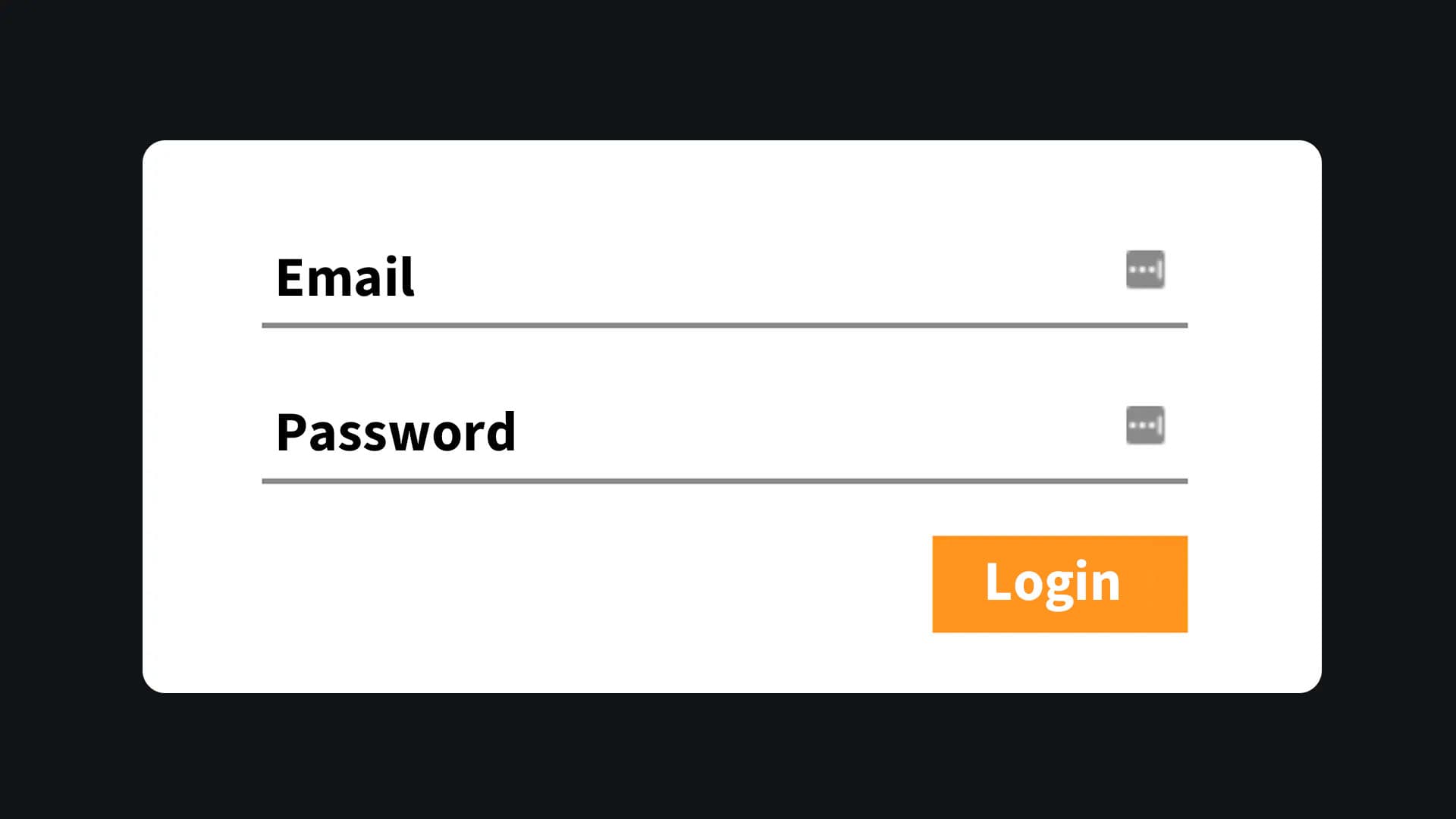
Show / Hide on a password field

The login form is the most common form found on websites. Creating a login form that gives users the choice of displaying or hiding their password is therefore an element that will considerably improve the lives of your users. Let's find out how in this article!
•
Updated on August 14, 2026
•
2 min read
Believemy logo
In this article

The login form is the most common form found on websites. Creating a login form that gives users the option to show or hide their password is therefore an element that will considerably improve your users' experience. Let's see how to do it in this article!

Want to see the code live?

Go directly to this link: demonstration


Step 1

To start, let's write our HTML code. The code is simple.

HTML
<label>
      <input type="password" placeholder="Password">
    
      <div class="password-icon">
        <i data-feather="eye"></i>
        <i data-feather="eye-off"></i>
      </div>
    </label>
    
    <!-- ICON SCRIPT -->
    <script src="https://unpkg.com/feather-icons"></script>
    <script>
      feather.replace();
    </script>

In the previous step, we use unpkg and its collection of icons.

It's a quick solution to easily add icons: eye and eye-off which are the icons that allow us to display an eye and a slashed eye.


Step 2

Now let's style the label and the input.

CSS
label {
      position: relative;
    }
    
    label input {
      font-size: 1em;
      color: #f9f9f9;
      background: transparent;
      padding: 1rem 1.2rem;
      width: 350px;
      border-radius: 5px;
      border: 2px solid #7a7a7a;
      transition: all 0.2s;
    }

Nothing complicated here. We give a "relative" position to our label to position our icons more easily. Then we style our password form field.

We define, for example, rounded borders with border-radius before adding background and text colors.


Step 3

Let's now detect the click on the eye and the slashed eye.

JAVASCRIPT
eye.addEventListener("click", () => {
      eye.style.display = "none";
      eyeoff.style.display = "block";
      passwordField.type = "text";
    });
    
    eyeoff.addEventListener("click", () => {
      eyeoff.style.display = "none";
      eye.style.display = "block";
      passwordField.type = "password";
    });
    

When the user clicks on the eye, we hide the "normal" eye icon and show the "slashed" eye icon.

Finally, we do the reverse to revert to a "hidden" input.

If you want to fully master JavaScript to do much more than just show/hide a password on a form field (input), we highly encourage you to take our complete JavaScript course immediately: learn JavaScript
Category: Developers

Share this article

Want to help us? Share this article on your networks or even better: on your site, in an article or in your newsletter.

Believemy logo
Comments (0)

You need to be logged in to comment on this article: log in or sign up.

Read next

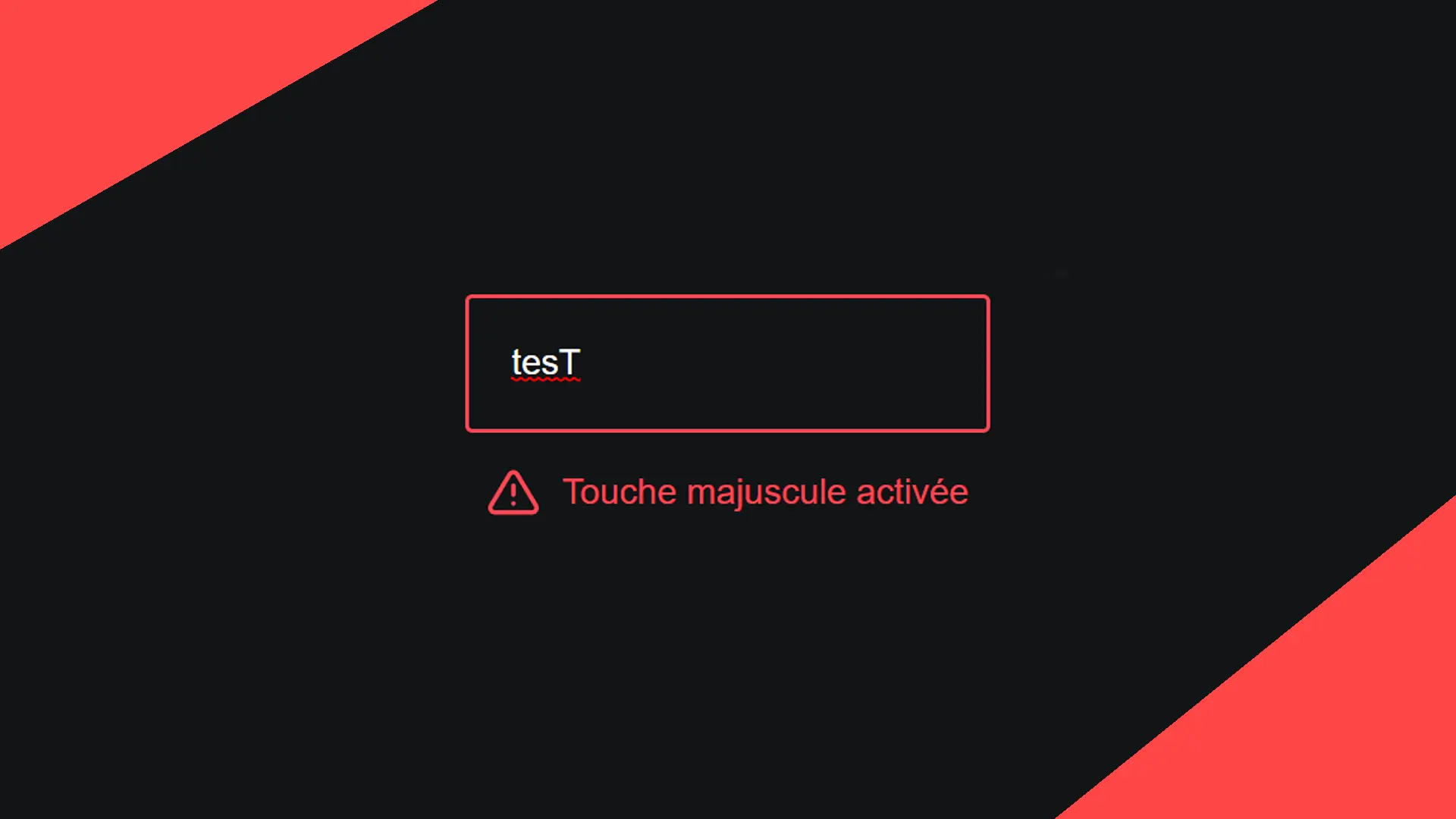
Detecting the shift key on a form with JavaScript

Whether it's for your registration or login forms, or even on your password change pages, warning your users when they use the shift key on their keyboard will considerably improve their experience on your site. In this article, we'll show you how to do this very easily!

December 9, 2024

Create a full-screen menu on click

Having a menu has become an indispensable classic. But having a menu that takes up the whole screen is ideal when you want your site to be totally responsive (and therefore suitable for mobile devices, for example). This article will help you to set up a full-screen menu that is activated on click!

December 9, 2024

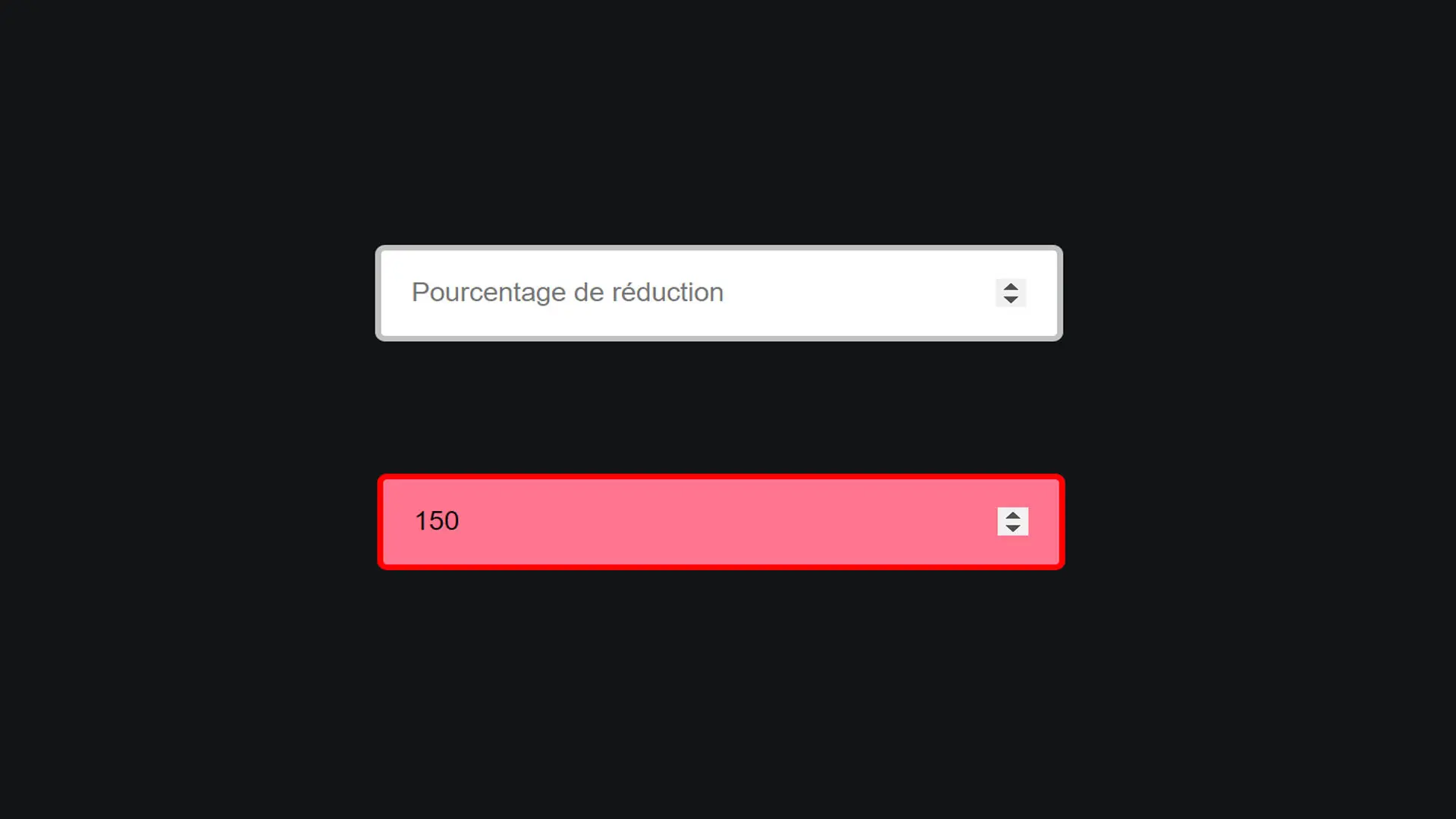
The out-of-range selector (for styling when a value is not correct)

Have you always wanted to dynamically check the values entered by your users in a form field without using JavaScript? Here's how to change the style of a field when a number entered by the user is invalid!

December 9, 2024

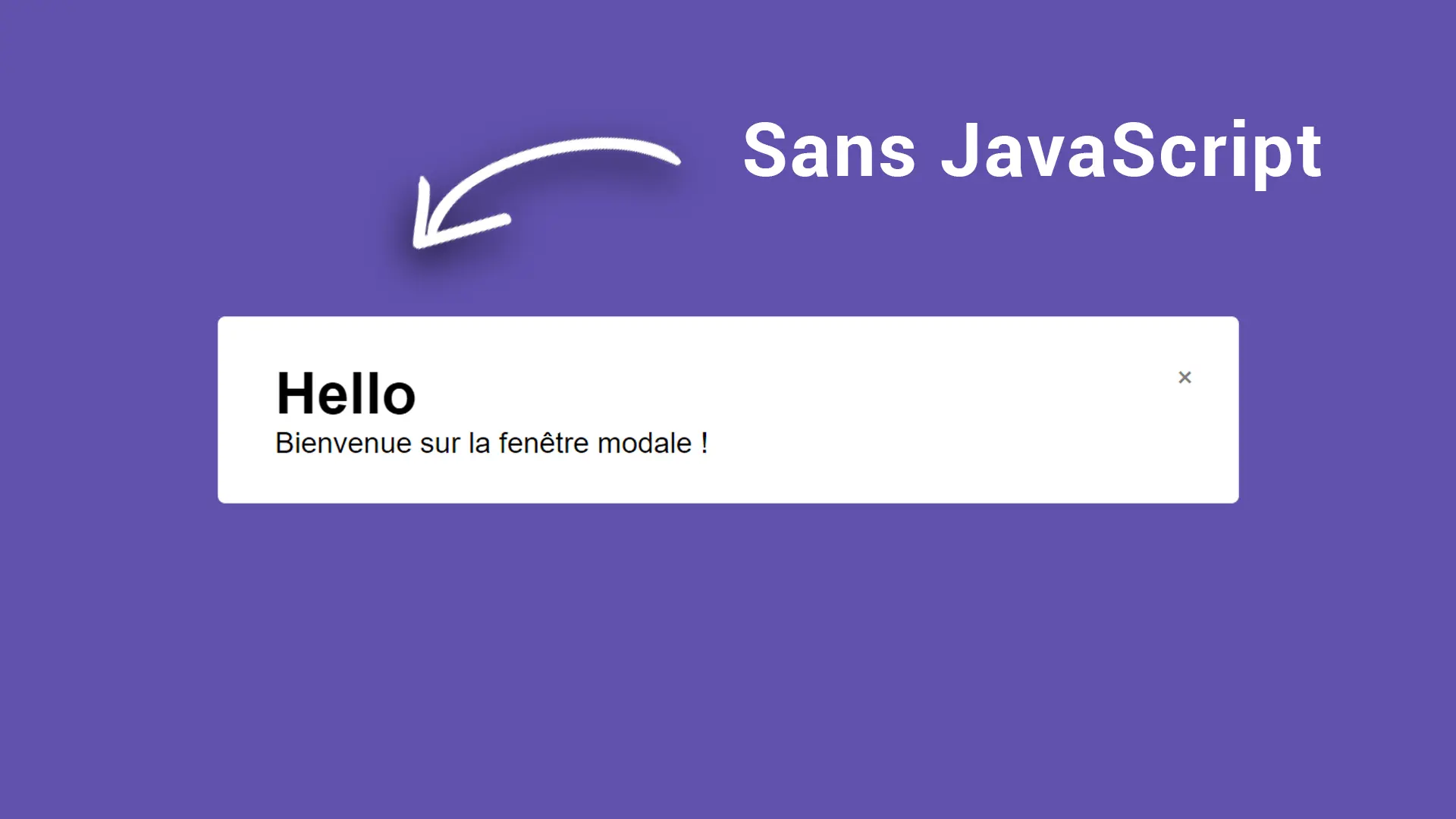
Creating a modal window without using JavaScript

Have you often wanted to create a modal window (a window that opens inside your website) but don't know anything about JavaScript? Let's find out how!

December 9, 2024

Creating a form with dynamic labels

The more modern a form, the more engaging it is. In this article, we'll look at how to create a form with dynamic labels that will increase the engagement of your forms and make your users want to fill them in.

December 9, 2024

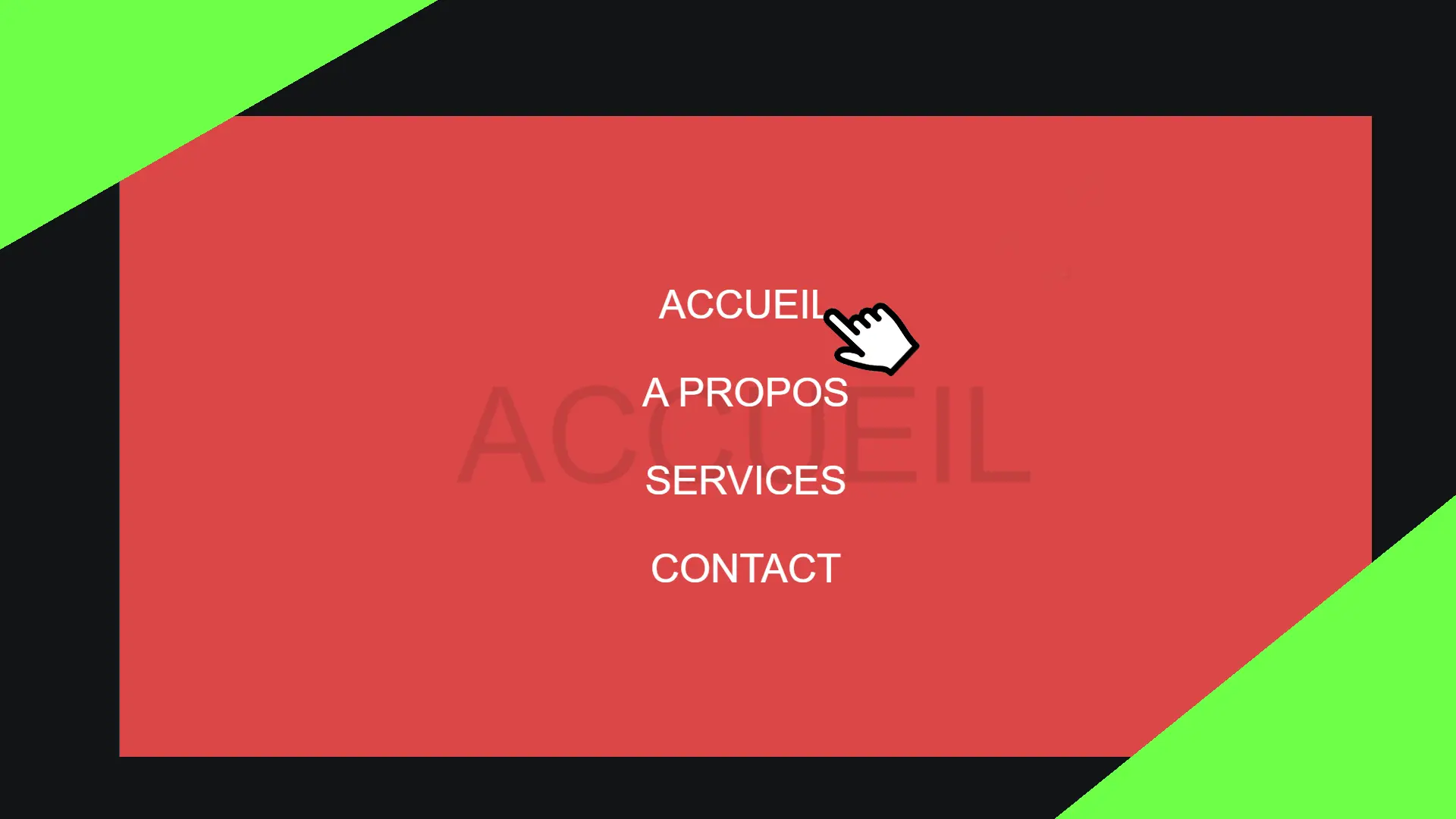
Create a menu that spans the entire page using CSS

From time to time we have to ask our visitors which page they want to go to, by displaying the main sections of our website. This menu is often not very pleasant to use, so let's find out together in this article how to make it much more modern, with beautiful animations that will make your passers-by want to visit your site!

December 9, 2024

Detecting the "swap" to close a menu with CSS

Think about your users when they visit your website on their mobile devices: allowing them to close your menu using the "swap" will make their experience on your site much easier, so you'll have a better user experience, which increases your chances of building loyalty. Let's find out how in this article!

December 9, 2024

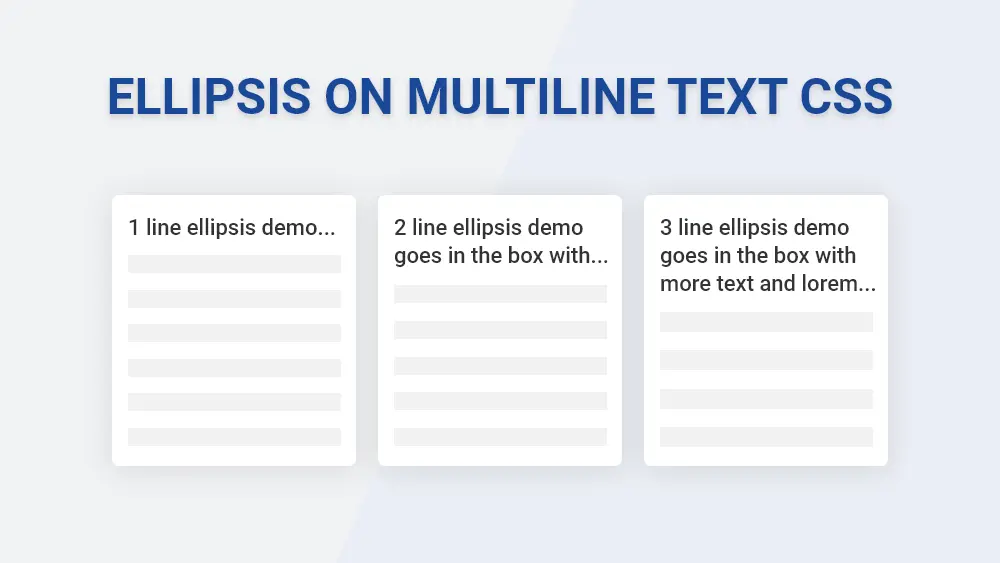
How to use suspension points to hide the rest of a text with CSS

This article will enable you to add suspension points to hide text. This is particularly useful when you don't want to break the style of your pages with a long first name or a book-length description.

December 11, 2024

Become the solopreneur you dream of being.

First project, career change, business launch: access our courses, practice on real-world cases, and move forward with clear guidance.