The window object is one of the most used objects in JavaScript. Often used to manipulate the browser and its entire environment, it actually offers different objects for different very specific needs:
window.location- to manipulate URLswindow.history- to manipulate historywindow.document- to manipulate the DOMwindow.navigator- to manipulate the browserwindow.screen- to manipulate the screen
1. The window.location Object
The window.location object contains all the information about the current page URL. It allows you to reload the page or navigate to another page.
Here are some examples.
Retrieve the Current URL with JavaScript
console.log(window.location.href);
// Returns the complete page URL
Redirect to a New Page with JavaScript
window.location.href = 'https://believemy.com';
// Redirects to example.com
Reload the Page with JavaScript
window.location.reload();
// Reloads the current page
2. The window.history Object
This object allows you to more or less manipulate the browser's history.
Be careful, this object does not allow reading the user's history, obviously. 👀
It offers features that allow, for example:
- to go back or forward in history
- to manipulate it (by adding URLs)
Let's see some examples.
Go Back and Forward in History with JavaScript
window.history.back(); // Returns to the previous page
window.history.forward(); // Advances to the next page
Manipulate History with JavaScript
It is possible to add a new URL to the history or replace the one for the current page.
Add a URL to History
window.history.pushState({page: 1}, 'Title', '/new-url');Here's what we're doing:
{page: 1}- This is an object stored by the browser as soon as we click on a link. Here, we're giving a page number.Title- The title of our page to add to the history/new-url- The URL for this new page
This method does not redirect the user. It simply changes the URL in the navigation bar, without trying to see if the requested page really exists. The page content remains the content of the current page.
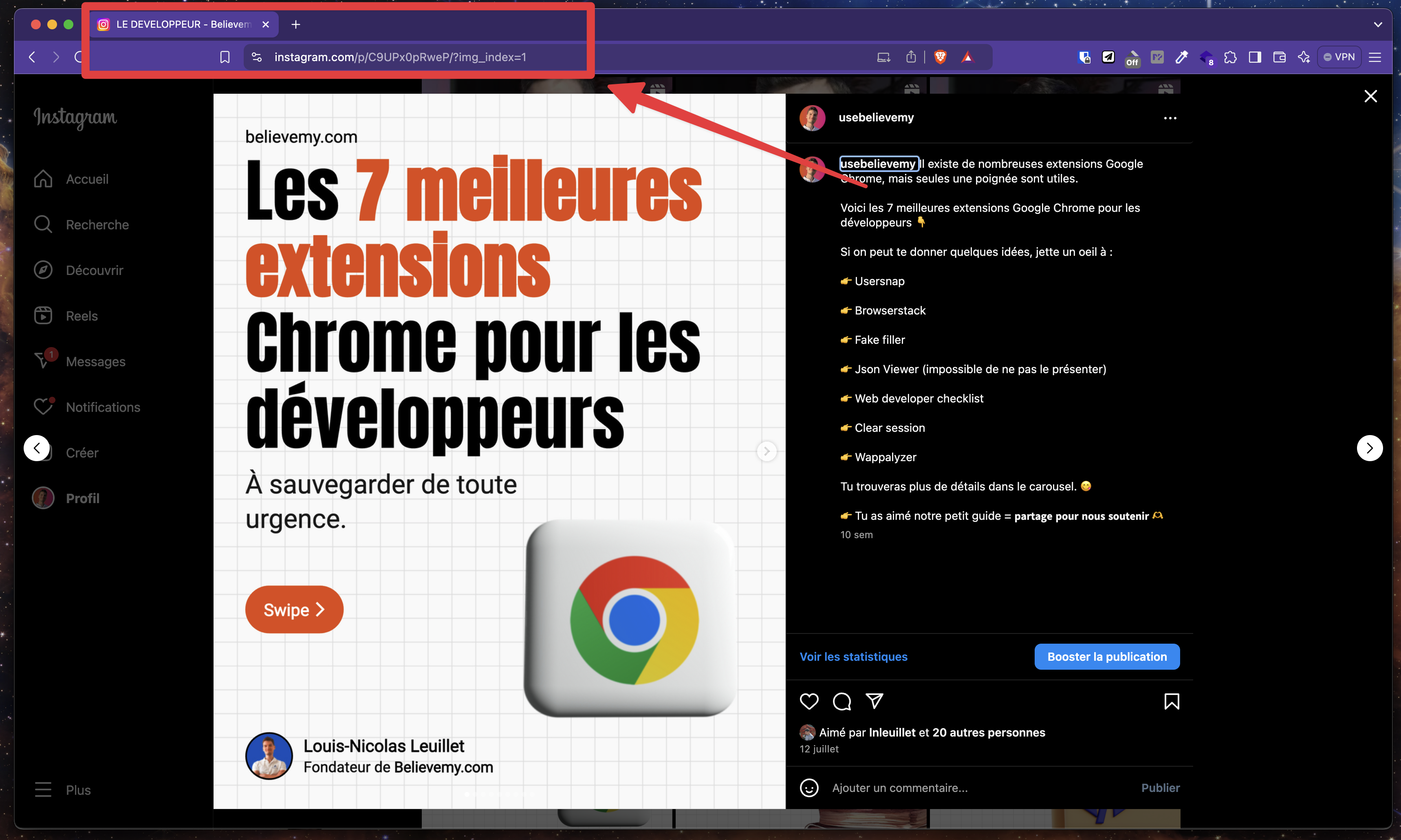
Generally, this method is used to dynamically change the URL when a new element is displayed. For example, Instagram offers this functionality when we click on a post: the URL in the navigation bar changes, but no reload is done. 😉
Manipulate History with JavaScript
window.history.replaceState({page: 3}, 'Updated Title', '/updated-url');This method works exactly like window.history.pushState but offers an important difference: it replaces the current page's history. This means that with this property, the current page is replaced in the history, whereas with window.history.pushState it is added.
In other words, here's what window.history.pushState creates in the history:
- Old page - URL A
- New page - URL B
Compare this with window.history.replaceState:
- Old page - URL A replaced with "New page - URL B".
It's impossible to see the previous page in the history.
3. The window.document Object
The window.document object allows referencing the DOM (Document Object Model), in other words, our entire HTML page.
It therefore allows:
- to access HTML elements
- to create and insert a new HTML element
- to modify the content or style of elements
Access DOM Elements with JavaScript
const header = document.getElementById('header'); // Select an element by its ID
const paragraphs = document.getElementsByTagName('p'); // Select all paragraphs
Create and Insert a New Element with JavaScript
const newDiv = document.createElement('div');
newDiv.textContent = 'Believemy';
document.body.appendChild(newDiv)

 // Adds the new element at the end of the body tag
Modify an Element's Content with JavaScript
const title = document.querySelector('h1');
title.innerText = 'New Title'; // Changes the text
title.style.color = 'blue'; // Modifies the color
4. The window.navigator Object
The window.navigator object provides information about the user's browser, their device, the permissions they have granted to our website, and certain APIs offered by the browser.
Read Browser Information with JavaScript
console.log(navigator.userAgent); // Identifies the browser used
console.log(navigator.language); // Returns the browser language
Detect if Geolocation is Allowed
if ('geolocation' in navigator) {
  navigator.geolocation.getCurrentPosition((position) => {
    console.log(position.coords.latitude, position.coords.longitude);
  });
}
Here, we use the getCurrentPosition method to display the coordinates (latitude then longitude) in our console.
5. The window.screen Object
Finally, the window.screen object contains information about the screen used by our user, such as its size or resolution.
Retrieve Screen Dimensions with JavaScript
console.log(screen.width); // Screen width
console.log(screen.height); // Screen height
Retrieve Screen Resolution with JavaScript
console.log(screen.pixelDepth); // Pixel depth (in bits)
console.log(screen.colorDepth); // Color depth (in bits)
Conclusion
The JavaScript window object offers many possibilities through its own objects:
window.location- which allows manipulating the URLwindow.history- which allows managing historywindow.document- to manipulate the DOMwindow.navigator- which allows obtaining information about the browser usedwindow.screen- which provides a way to obtain resolution
It is important to train well to understand how to use JavaScript in its smallest details: it is an important starting point to not complicate our learning with more robust technologies that are learned after JavaScript, such as React and NextJS.
If you want to know everything about JavaScript to become better than 99% of other developers, go see our training entirely dedicated to JavaScript. 😬