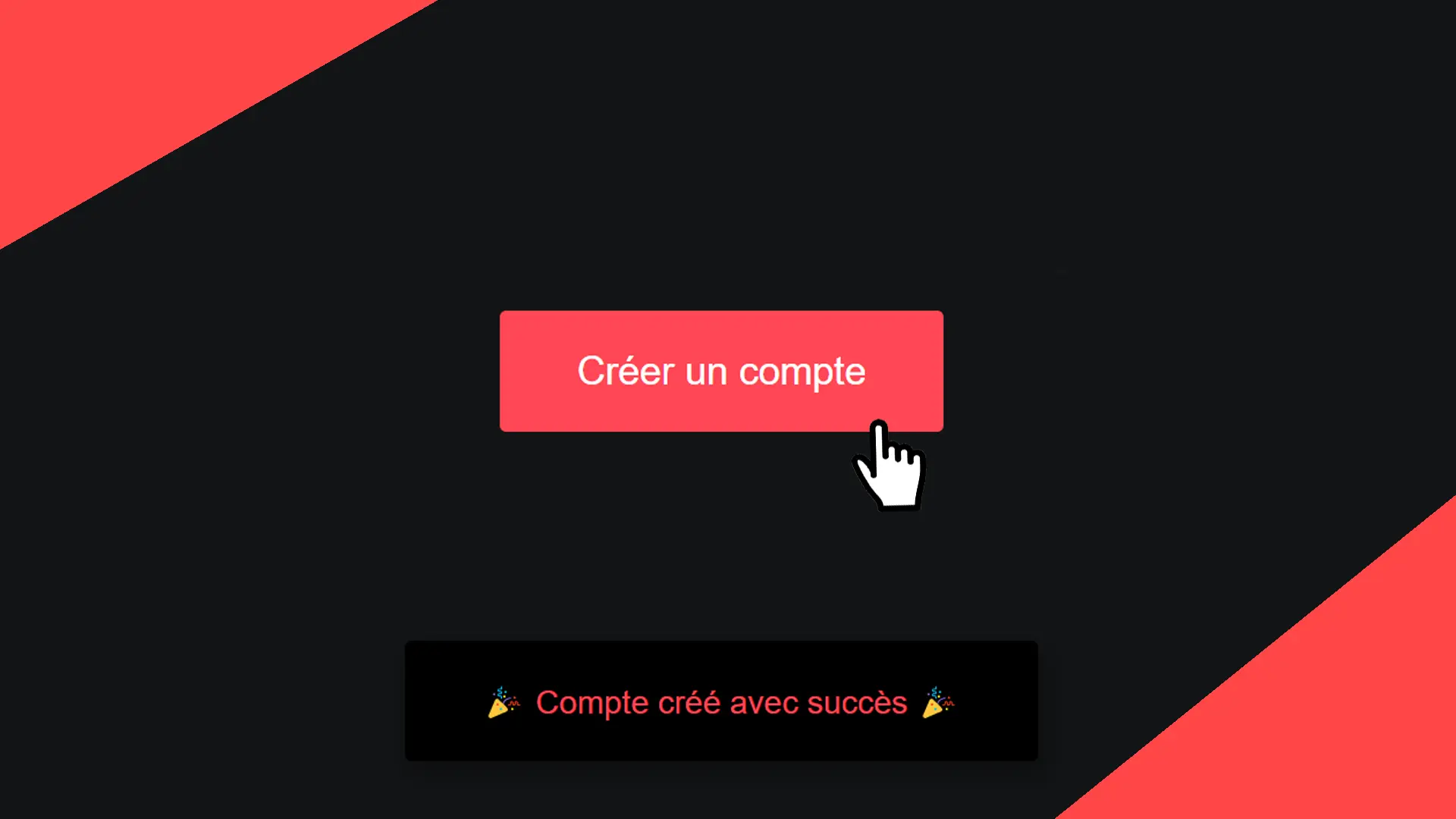
React Toastify is one of the most used React libraries when it comes to adding notifications to a React application.
These notifications generally appear in a temporary manner and are used to inform the user about an action:
- that was successful;
- that failed;
- or an important piece of information.
With React Toastify, we're talking about non-blocking notifications (also called "toasts"). Unlike blocking notifications that prevent the user from doing something until they close the notification, a non-blocking notification is displayed in a corner so as not to obstruct (not block) the user while they are on our website. 😉
Why Use React Toastify for Notifications?
Informing your user through non-blocking notifications is crucial in a React application. For this, you can use notifications! They enhance the user experience by providing immediate feedback on the actions performed.
Alright, but why React Toastify? 🤔
The advantage of React Toastify is that the library is easy to integrate. It is very flexible with the ability to add and customize tons of options. No wonder it’s one of the trendiest libraries in recent years for managing notifications in React projects!
Installation and Configuration of React Toastify
Prerequisites for Using React Toastify
Before installing React Toastify, you must have a React application ready to use (makes sense!).
If you haven't done so yet, you can create a new application by running the following command in your terminal, which will create a new React project using Vite:
npm create vite@latestChoose React and you should be good to go!
How to Install React Toastify?
Installing React Toastify is very simple. 😬
Use the following command in your React project:
npm install react-toastifyAnd if you’re using Yarn (peace out ✌️):
yarn add react-toastify
Basic Configuration with ToastContainer
Now that we’ve installed React Toastify, we need to configure it!
To do this, we need to import and configure ToastContainer, which is a component responsible for displaying notifications (toasts).
It will allow us to display notifications in our React project! It should be placed in your project at the root (or at the top level of your component tree).
Here’s a small example integrated into the App.js file:
import React from 'react';
import { ToastContainer, toast } from 'react-toastify';
import 'react-toastify/dist/ReactToastify.css';

function App() {
  return (
    <div className="App">
      <h1>Testing React Toastify with Believemy 🚀</h1>
      <ToastContainer />
    </div>
  );
}

export default App;
Make sure to import the styles so you don’t end up with notifications that don’t display properly in your projects:
How to Display a Notification with React Toastify?
Using toast()
To display notifications with React Toastify, we will use a function: toast().
This function allows you to trigger notifications on demand. It accepts a string and even a React component in its content!
Let’s try a basic example:
toast("Wow! Does this work?");With our previous example, we would have the following:
import React from 'react';
import { ToastContainer, toast } from 'react-toastify';
import 'react-toastify/dist/ReactToastify.css';

function App() {
  return (
    <div className="App">
      <h1>Testing React Toastify with Believemy 🚀</h1>
      <button onClick={() => toast('Wow! Does this work?')}>
         Show a notification
       </button>
      <ToastContainer />
    </div>
  );
}

export default App;
We added a button (button) that triggers a notification using the toast() function when the user clicks on it (onClick).
And there you have your first notification! 💫
If your notification doesn’t appear, it might be because you’re trying to add ToastContainer in a server component.
It is mandatory to add it in a client component!
Types of Notifications
React Toastify offers predefined styles for different types of notifications.
toast.success('Success! 🎉');
toast.error('Error 😱');
toast.info('Useful information 🔍');
toast.warn('Warning! 💥');Think about adding icons or emojis to your notifications! They can improve their readability and capture the user’s attention.
Notification with JSX
It is also possible to add JSX to the message by passing a React component.
toast(<div><strong>Hello</strong> with JSX</div>);
Customize Notifications with React Toastify
React Toastify allows you to precisely customize notifications to suit your needs. Let’s see how it’s possible!
Change Display Position
By default, toasts appear at the top-right of the screen. However, you can easily change their position using the position property in ToastContainer.
<ToastContainer position="bottom-left" />Here, we specify that our notifications should appear in the bottom-left corner of the user’s screen.
Here are all the available options for the position property:
top-right(default)top-centertop-leftbottom-rightbottom-centerbottom-left
Set Notification Duration
By default, toasts disappear automatically after about 5 seconds. Fortunately, we can modify this using the autoClose property provided by React Toastify:
toast('This message lasts 10 seconds', {
  autoClose: 10000, // 10 seconds
});
Here, our notification will have a lifespan of 10 seconds! It’s also possible to modify this parameter for all notifications by specifying the autoClose property directly on ToastContainer:
<ToastContainer autoClose="10000" /> // millisecondsThis little trick can also be used for the position property we saw earlier.
All our notifications can appear at certain positions on our screen by specifying position on ToastContainer, but we can also specify individually for each notification where it should appear by setting position in the toast() function.
Customize Notification Styles
You can customize the styles of notifications with CSS.
For example, to add a CSS class to a toast:
toast('Styled notification with CSS', {
  className: 'my-class',
});
Handle Events and Callbacks in React Toastify
React Toastify also allows you to perform actions when a specific event occurs. Let’s look at some examples together! 😋
Using Action Buttons
It is possible to add buttons or actions within notifications.
toast(
  <div>
    File uploaded. <button onClick={handleClick}>Open</button>
  </div>
);
By clicking the button in the notification, the handleClick function is triggered. But there’s even more, thanks to callbacks.
Using Callbacks (onClose, onClick)
We can add callbacks to handle events such as:
- closing a notification;
- clicking on a notification.
toast('Notification with callbacks', {
  onClose: () => console.log('Toast closed'),
  onClick: () => console.log('Toast clicked'),
});
Very useful for performing custom actions based on user behavior!
Optimize Notifications with React Toastify
Set a Limit on Simultaneously Displayed Notifications
It is possible to display multiple notifications at the same time. Toastify manages this automatically. But sometimes, we prefer to limit the number of visible notifications on the screen!
You can do this using the limit property.
In the code below, we will display a maximum of 4 notifications at the same time:
<ToastContainer limit={4} />
Display a Persistent Notification
To keep a notification visible until the user interacts with it, you can use the autoClose={false} property:
toast('This is a persistent notification', {
  autoClose: false,
});
Conclusion
React Toastify is a powerful and flexible library when you want to add notifications to your React projects! With its quick installation and advanced configuration, everything is possible quickly to have instant notifications perfectly tailored to your projects.
It is simply the ideal tool to enhance interaction with your users!
And if you want to further master tools like React and React Toastify, don’t hesitate to check out our comprehensive React training to go even further.