Creating a proper Markdown previewer with React—and doing it correctly—requires real focus! Fortunately, with a bit of help, anyone can achieve it. Here are some tips for building your own Markdown previewer!
Step 1 - Create the HTML and CSS
In this first step, I recommend starting by creating the HTML and CSS code.
We won’t need to create any components other than the default one provided by React: App.js.
For the HTML structure, I chose to use flexbox to place two elements side by side:
- The left element (containing the textarea)
- The right element (containing the previewer)
Each of these two elements takes up 50% of the space.
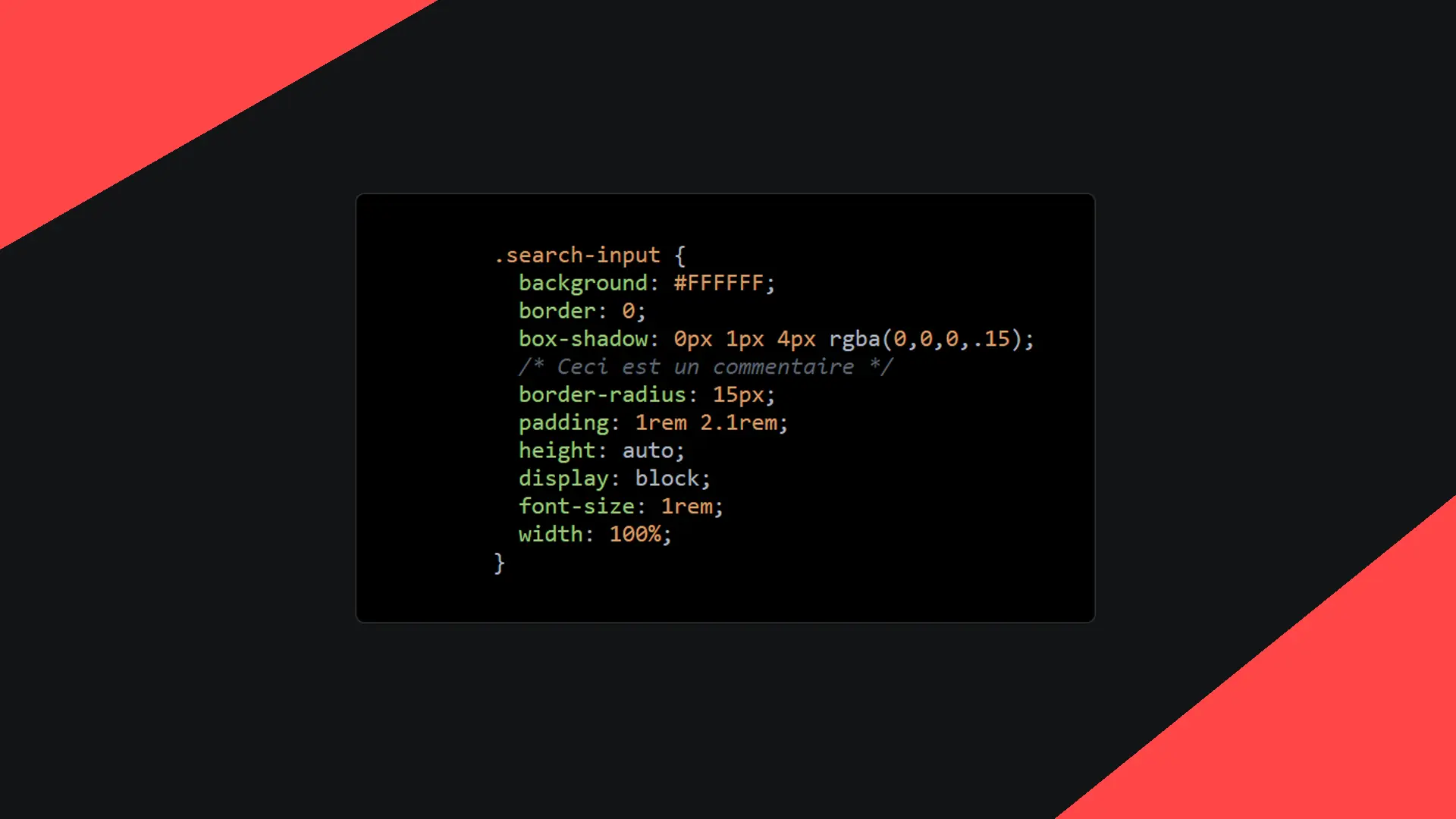
If you'd like, here’s the CSS I’m using for my textarea and code elements:
textarea {
  display: block;
  width: 100%;
  font-family: Arial, sans-serif;
  padding: 5px 10px;
  font-size: 1rem;
  line-height: 1.5rem;
  border-radius: .25rem;
}

code {
  padding: 2px 4px;
  font-size: .9em;
  color: #c7254e;
  background-color: #f9f2f4;
  border-radius: 4px;
}
I also suggest adding a default value to your textarea. This is a Markdown text that will provide content when your page loads:
# `Previewer - Believemy`\n### Oh! Magic!\nActually, not really: this is called Markdown, and this project built entirely with React converts it into *HTML*!\n\n### Use Cases\n* *italic*\n* **bold**\n* `monospace`\n* ~~strikethrough~~\n* # h1\n* ## h2\n* ### h3\n* #### etc\n[Believemy](https://believemy.com)Let’s meet in the next step!
Have fun!
If you want, you can see everything possible with Markdown by checking out this guide.
Step 2 - Detect Text Changes
In this second step, I recommend detecting text changes in our textarea.
I won’t provide specific hints for this step; I’m confident you’ll be able to figure it out on your own.
Step 3 - Install MarkedJS
To convert our Markdown into HTML, we’ll take advantage of the excellent library Marked.
You can install it using the following command:
npm install --save markedThen, import Marked from the library, just like we’ve done with React since the beginning.
Step 4 - Convert Text to HTML
To finish this project, we’ll need to convert the Markdown into HTML.
By now, you should already have detected text changes from the user. I’m sure you’ll manage to retrieve the text itself. If not, you can check the end of this step for some valuable hints.
To convert our Markdown into HTML, we installed the Marked library in the previous step. Here’s how it works:
Marked(text); // Returns the Markdown text as HTMLKnowing this, you just need to find a way to add the generated HTML directly into our right element (the previewer). There’s a trick to implementing this; I’ll let you figure it out. You can also check Hint B below if needed.
Hints
Hint A
If you’re having trouble retrieving the text entered by the user, remember that React is just JavaScript. You can retrieve the entered text from the event triggered by JavaScript.
event.target.valueSimply detect this event by passing it as a parameter via an anonymous arrow function, just like we managed to change the name of our student by passing "Elon" as a parameter.
Hint B
If you’re struggling to insert your HTML code directly with React: that’s normal. React has built-in security that prevents adding HTML into JSX. To disable this, you can use the dangerouslySetInnerHTML attribute.
Here’s how to activate it (it’s very simple): https://reactjs.org/docs/dom-elements.html#dangerouslysetinnerhtml
This project is your very first project with React. It’s not very difficult, but it’s not very easy either. I know you can do it. Take your time, breathe, drink some hot chocolate or coffee, and don’t hesitate to search online instead of immediately checking the solution: it’s the best way to learn. Everything you need has been covered in our lessons.
I believe in you!
Solution
Warning: you’re about to view the solution. Stop here and really try to create your Markdown previewer yourself—you’re capable. Nothing is more satisfying than completing a project, even if it takes some time and effort.
Here’s the link to the full video solution: https://www.youtube.com/watch?v=RA1zlN3roJI