In this article
Let’s discover together how to create a loading effect on our elements during an AJAX call, for example!
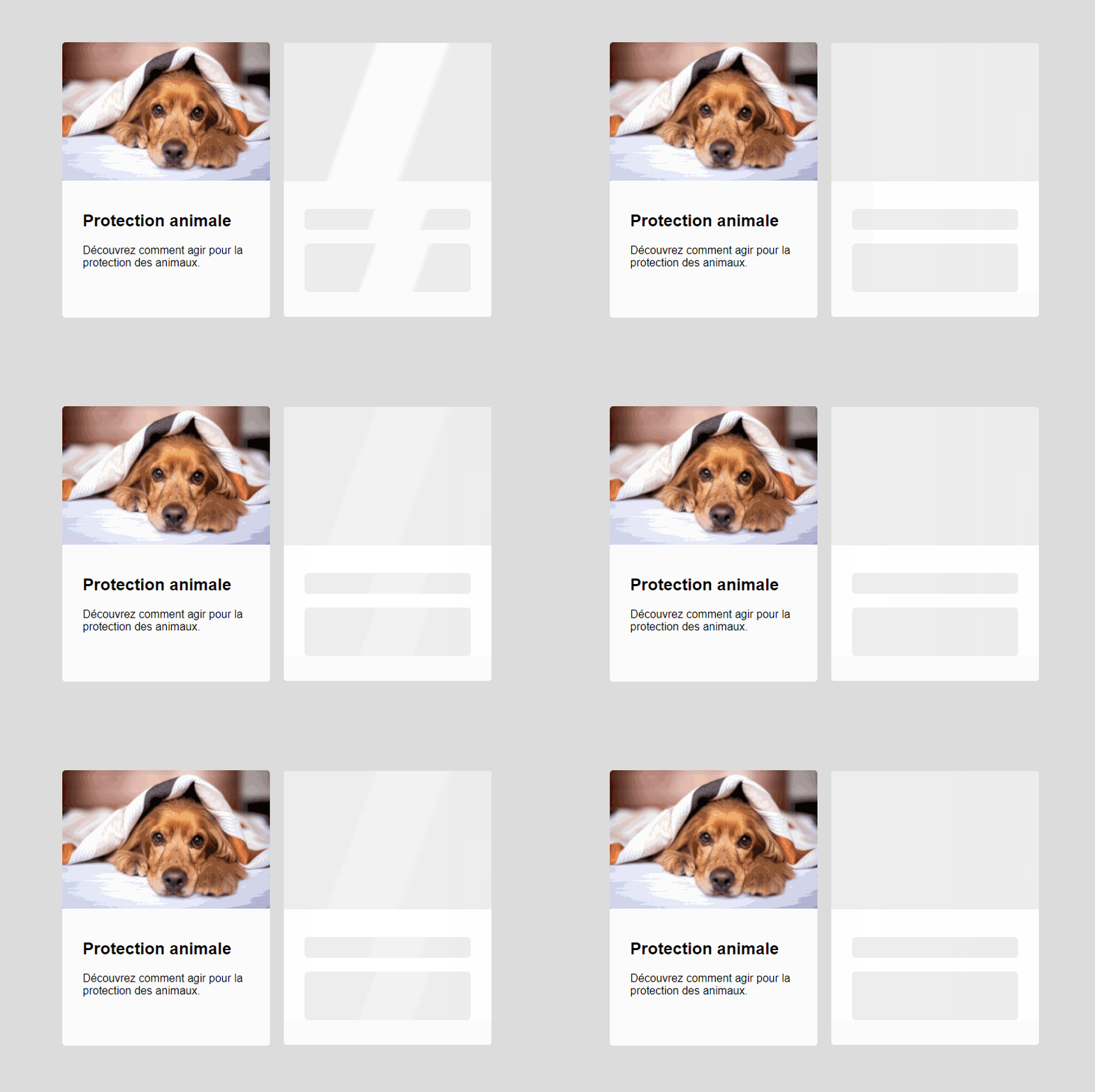
Step 1
Let's start with our HTML code.
HTML
<div class="card">
  <div class="image">
    <img src="https://cdn.pixabay.com/photo/2021/01/21/16/17/english-cocker-spaniel-5937757_960_720.jpg" />
  </div>
  <div class="content">
    <h2>Animal Protection</h2>
    <p>Discover how to take action for animal protection.</p>
  </div>
</div>

<div class="card is-loading">
  <div class="image"></div>
  <div class="content">
    <h2></h2>
    <p></p>
  </div>
</div>
Step 2
For this example, we will use Flexbox on our body tag.
CSS
body {
  display: flex;
  align-items: center;
  justify-content: space-around;
  flex-wrap: wrap;
  height: 100vh;
}
Step 3
Now, let's take care of the cards.
CSS
.card {
  height: 379px;
  width: 300px;
  border-radius: 10px;
  transition: all 0.8s;
  overflow: hidden;
  background: black;
  box-shadow: 0 70px 63px -60px #000000;
  display: flex;
  justify-content: center;
  align-items: center;
  position: relative;
}
Step 4
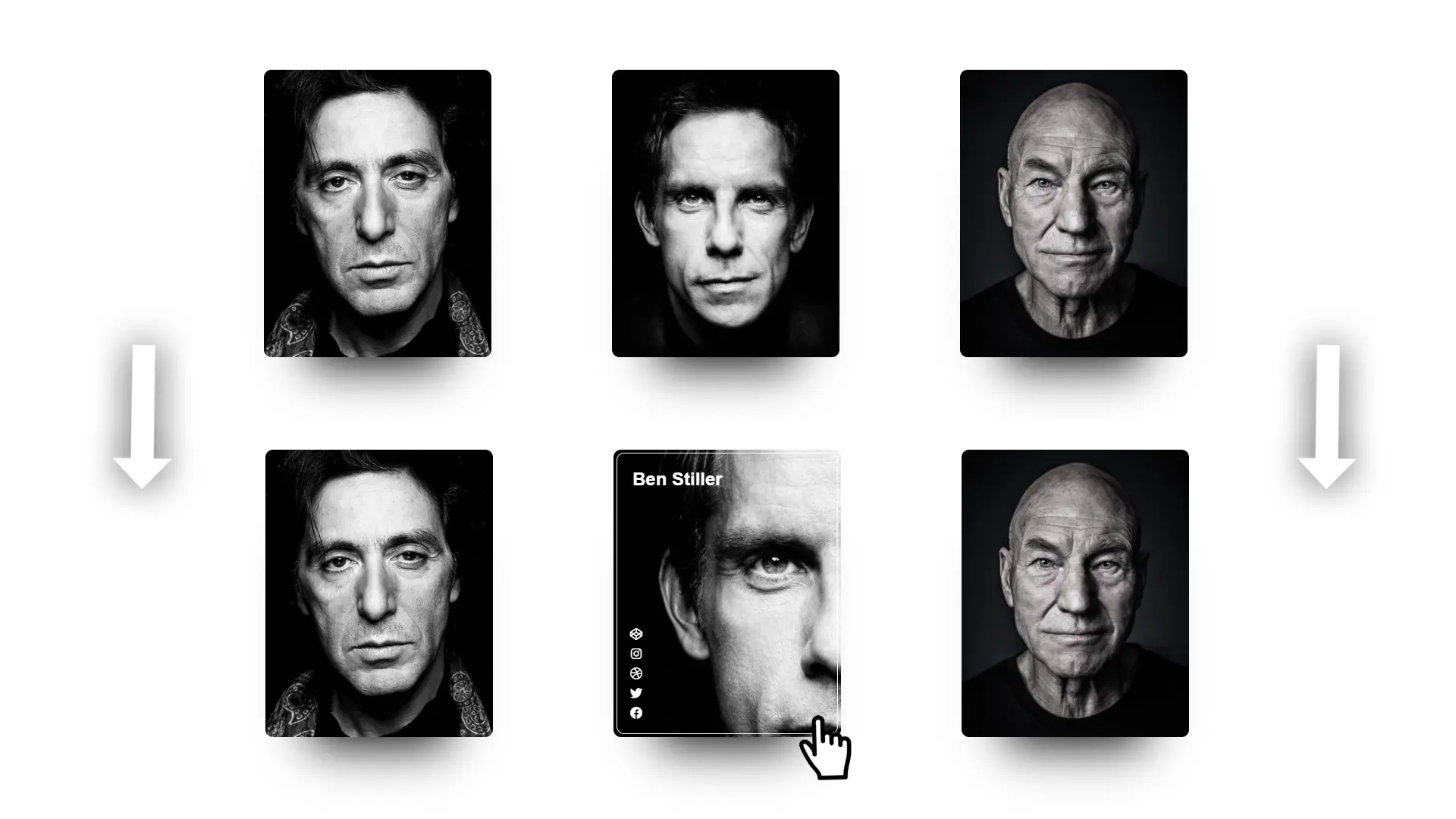
So, we have our cards: let's integrate the white frame and its appearance on hover.
CSS
.border {
  height: 369px;
  width: 290px;
  border-radius: 10px;
  transition: all 1s;
  position: relative;
}

.border:hover {
    border: 1px solid white;
}
Step 5
We now have our cards and borders, but we only have black backgrounds... That's not very nice. Let's change that by adding photos to each card!
CSS
.card0 {
  background: url('https://i.pinimg.com/736x/8f/a0/51/8fa051251f5ac2d0b756027089fbffde--terry-o-neill-al-pacino.jpg') center center no-repeat;
  background-size: 300px;
}

.card0:hover {
    background: url('https://i.pinimg.com/736x/8f/a0/51/8fa051251f5ac2d0b756027089fbffde--terry-o-neill-al-pacino.jpg') left center no-repeat;
    background-size: 600px;
}

.card1 {
  background: url('https://i.pinimg.com/originals/28/d2/e6/28d2e684e7859a0dd17fbd0cea00f8a9.jpg') center center no-repeat;
  background-size: 300px;
}

.card1:hover {
    background: url('https://i.pinimg.com/originals/28/d2/e6/28d2e684e7859a0dd17fbd0cea00f8a9.jpg') left center no-repeat;
    background-size: 600px;
}

.card2 {
  background: url('https://i.pinimg.com/originals/ee/85/08/ee850842e68cfcf6e3943c048f45c6d1.jpg') center center no-repeat;
  background-size: 300px;
}

.card2:hover {
    background: url('https://i.pinimg.com/originals/ee/85/08/ee850842e68cfcf6e3943c048f45c6d1.jpg') left center no-repeat;
    background-size: 600px;
}
Step 6
Now, let's style our titles and icons.
CSS
.card h2 {
  font-family: Arial, sans-serif;
  color: white;
  margin: 20px;
  opacity: 0;
  transition: all 1s;
}

.fab {
  opacity: 0;
  transition: all 1s;
}

.icons {
  position: absolute;
  height: 130px;
  top: 226px;
  width: 50px;
  display: flex;
  flex-direction: column;
  align-items: center;
  justify-content: space-around;
}

a {
  color: white;
}
Step 7
Now, let's make the icons and card titles appear on hover.
CSS
.card:hover h2 {
    opacity: 1;
}

.card:hover .fab {
    opacity: 1;
}
Bravo! We're done!
Share your result on the official Believemy discussion channel!
Category: Developers